
Compose 3D terrain and city shots
Enable terrain or 3D buildings, then use pitch and orbit to reveal the subject clearly.
A 3D shot needs more than a tilted map. Everest needs a clear summit and surrounding ridges; the Empire State Building needs its body and spire in frame. Map data, zoom, and pitch all affect the result.
Watch the result
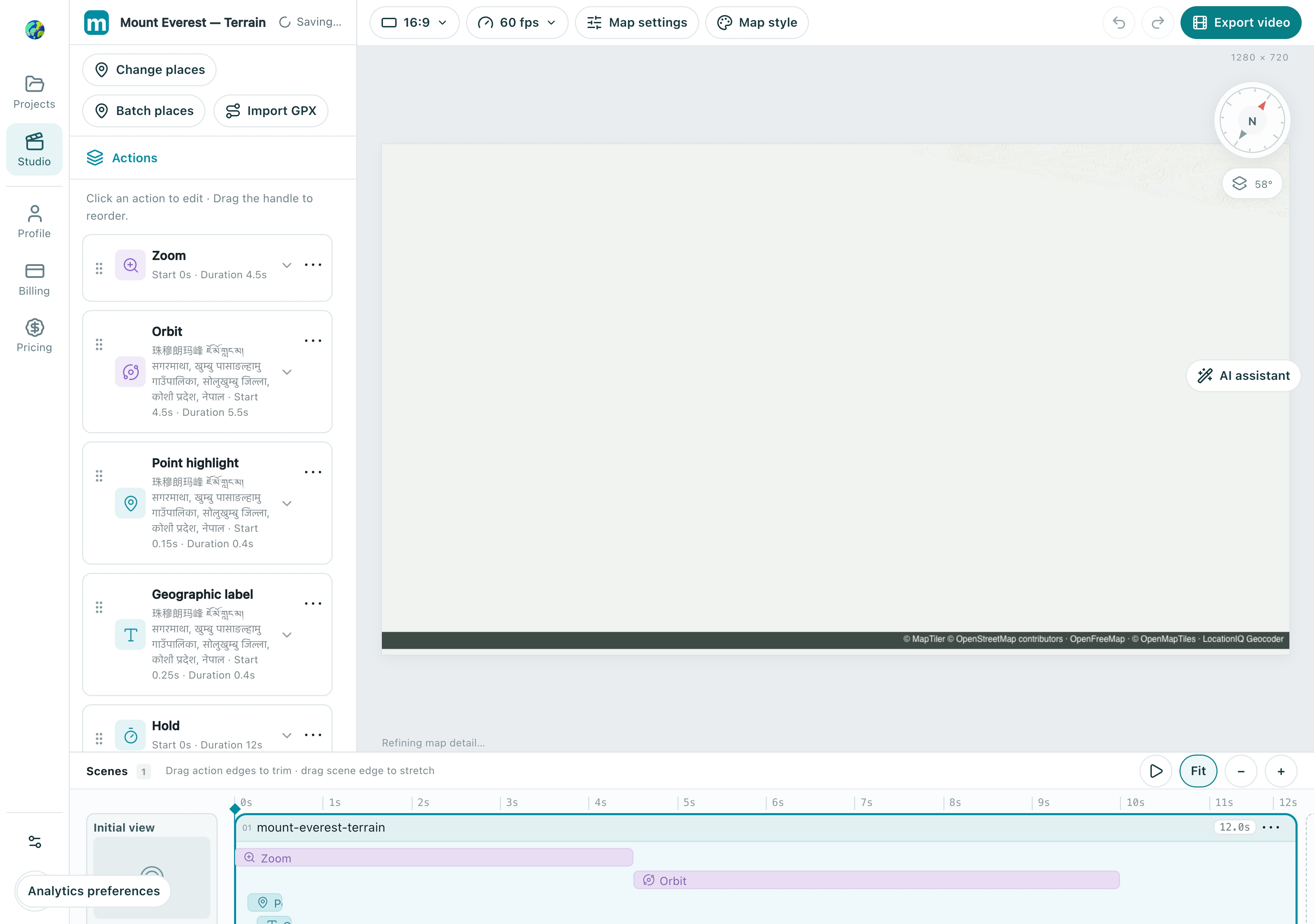
1. Choose the right map effect
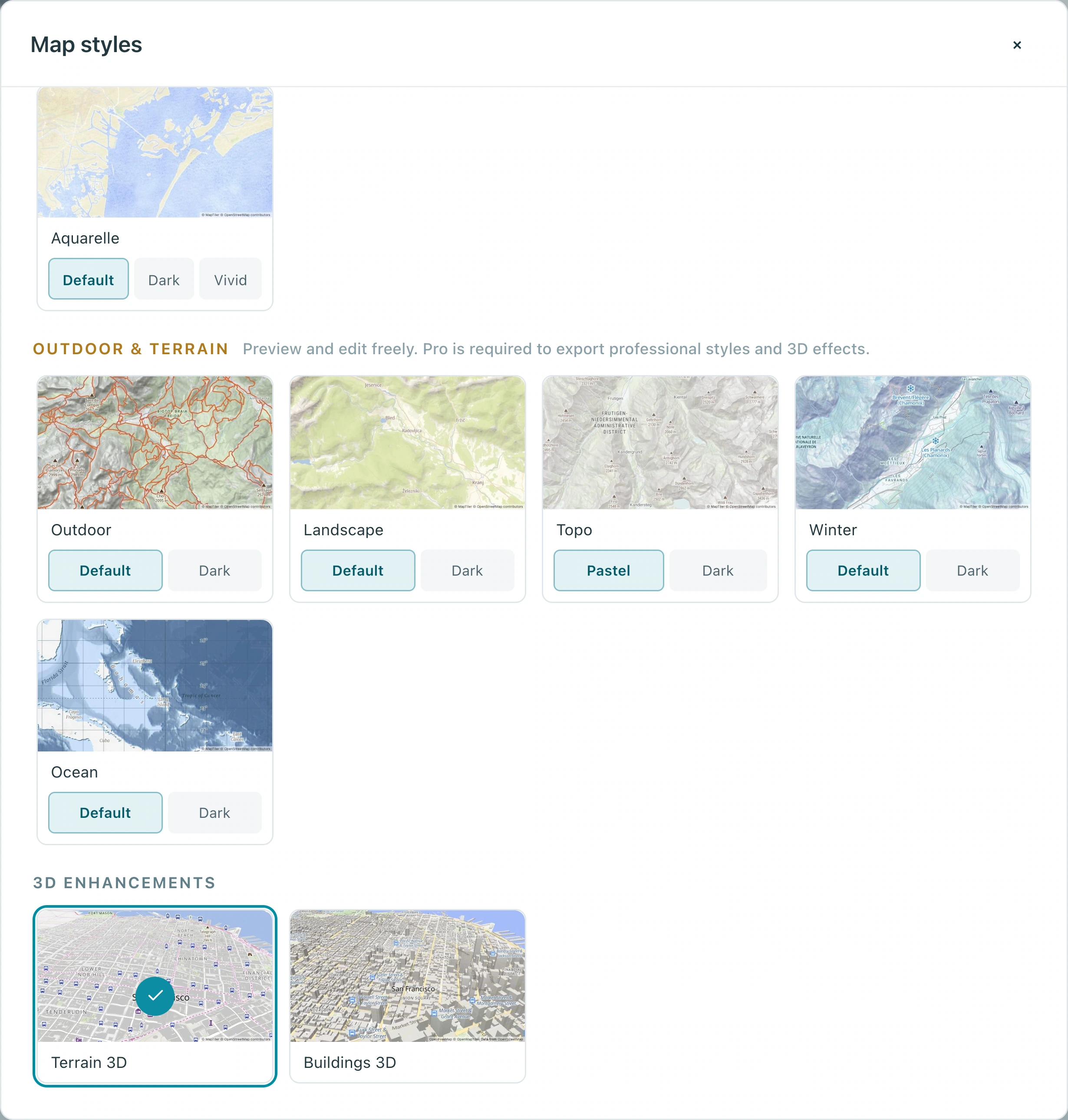
Open Map style and choose terrain or buildings under 3D enhancements. Use Terrain 3D for mountains and Buildings 3D for cities. This terrain example uses Flat map; switch to a non-terrain basemap for globe shots.
1.1 Scroll to 3D enhancements and select Terrain 3D. Buildings 3D beside it is for city buildings.
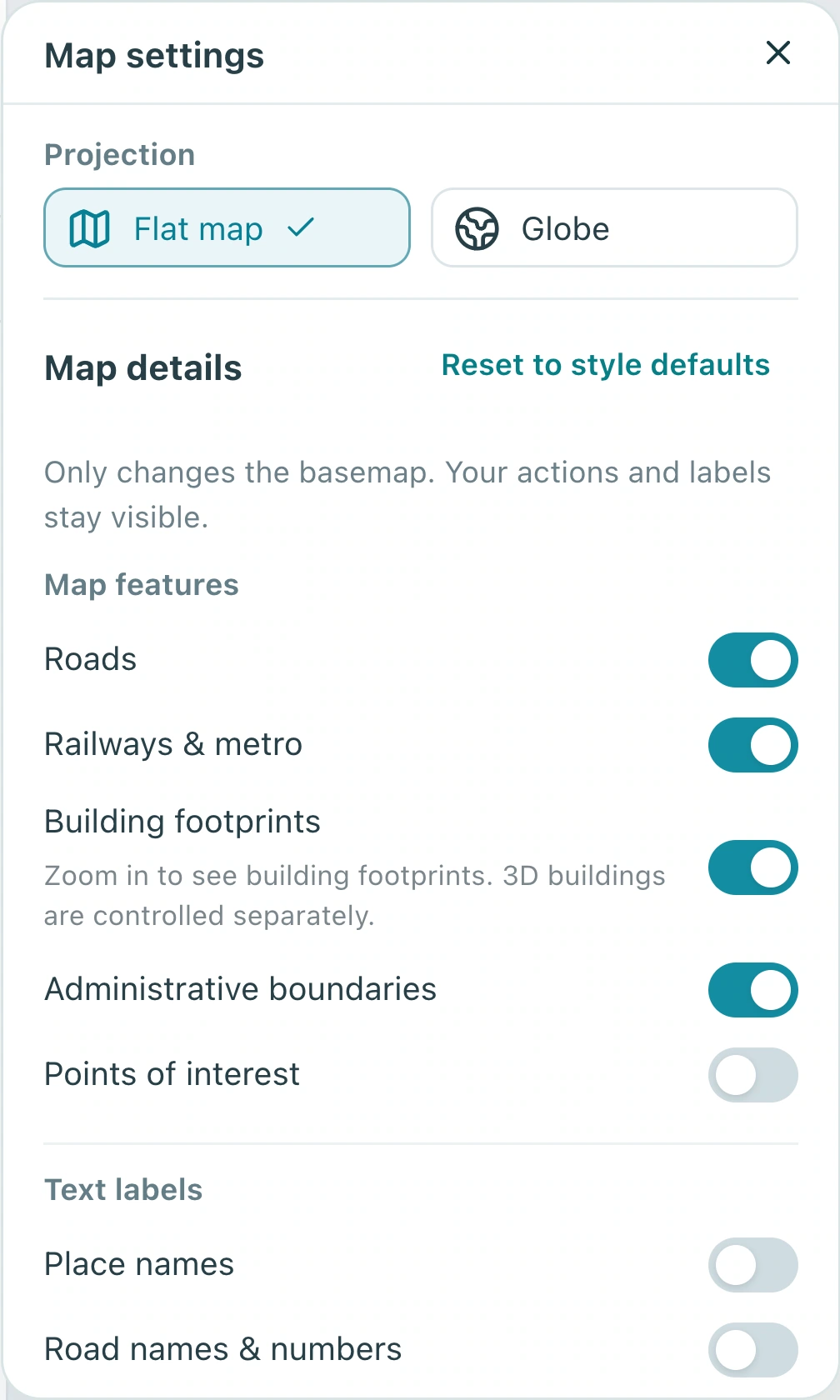
1.2 Confirm the projection in Map settings. This example uses Flat map; review its terrain and camera effect.
Check: Ridges show elevation, or buildings appear as three-dimensional volumes.
2. Locate the subject before adjusting pitch
Search for Everest or the building and verify its position. Begin with a moderate pitch, then adjust zoom. Buildings require a sufficiently close zoom and suitable map data; check both if they do not appear.
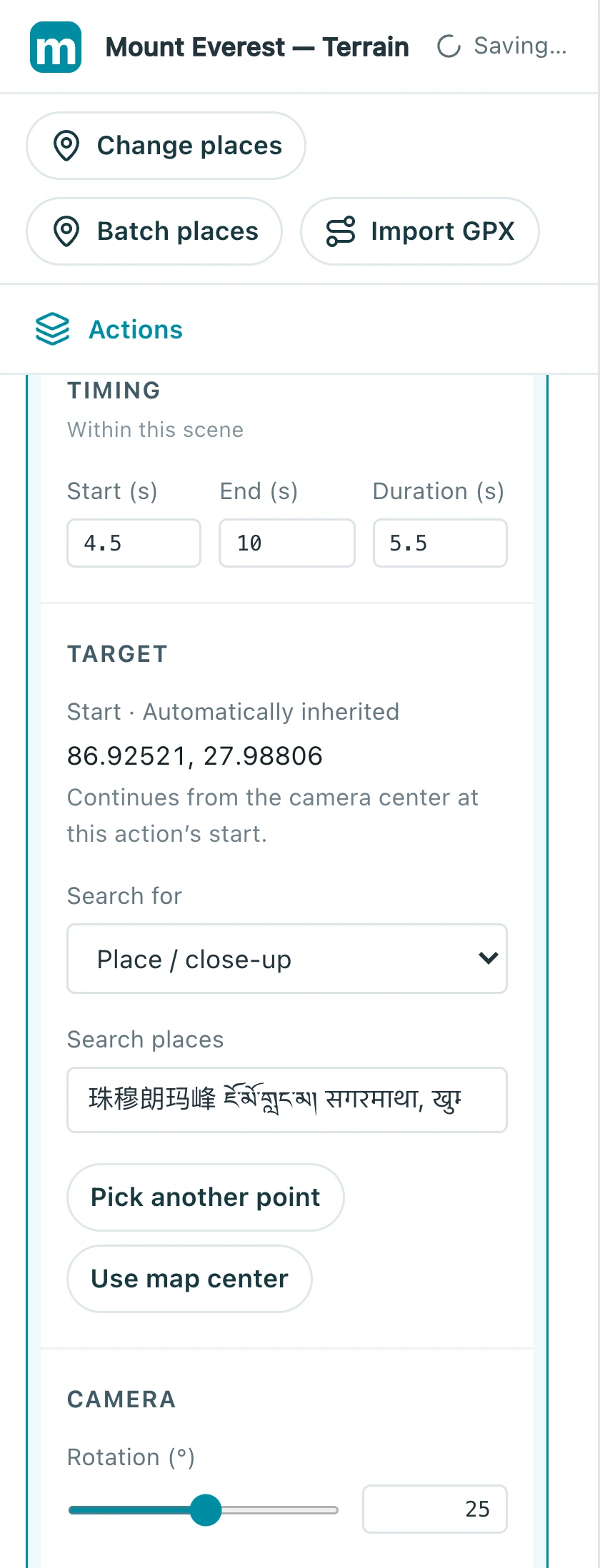
2.1 Verify Mount Everest in the action target and choose Place / close-up rather than an overly broad area.
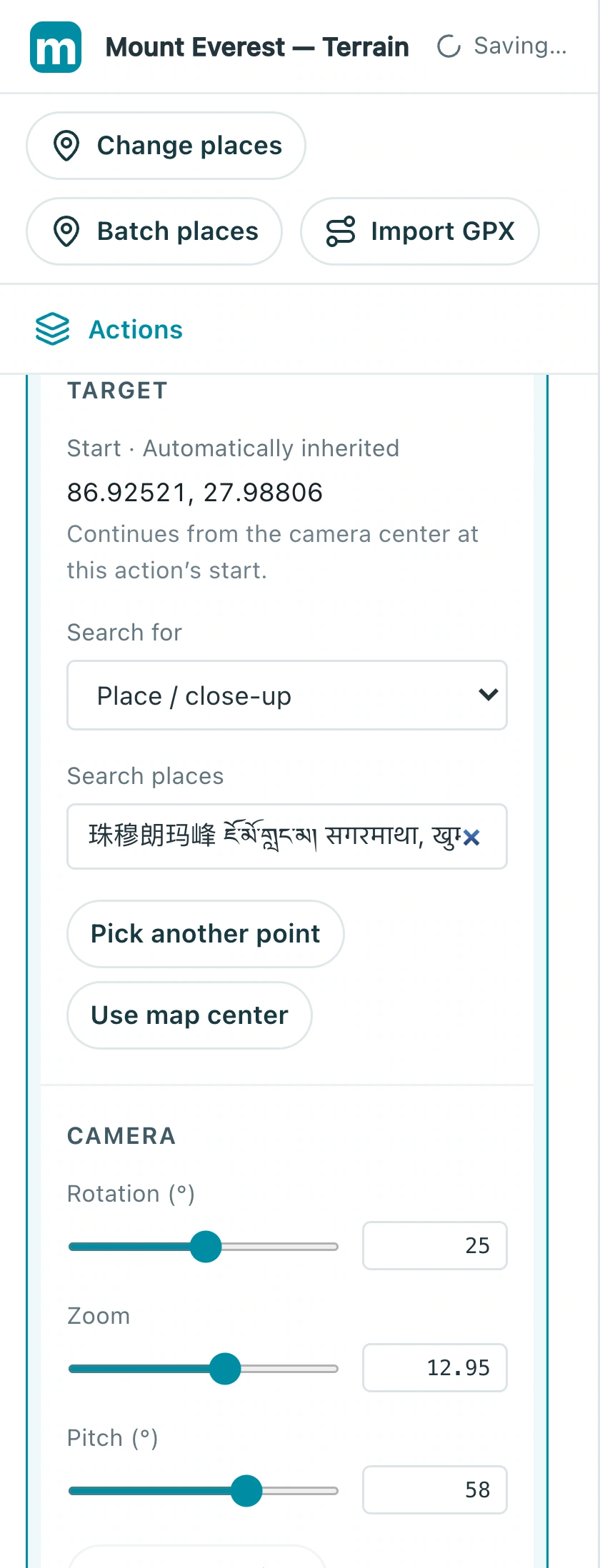
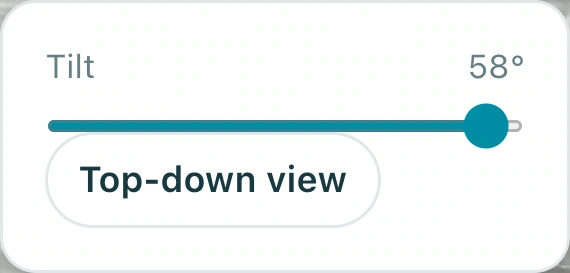
2.2 Open Tilt on the right. This example uses 58°; begin more gently and check that the summit stays in frame.
Check: The subject is in frame and its summit or roof is not clipped.
3. Reveal depth with a restrained orbit
Add an orbit around the same target. Start with a modest angle over roughly five seconds and watch the full result. A fast or excessive orbit can push a mountain or building out of frame.
3.1 Select Orbit and inspect rotation, zoom, and pitch. This example rotates 25° at zoom about 12.95.
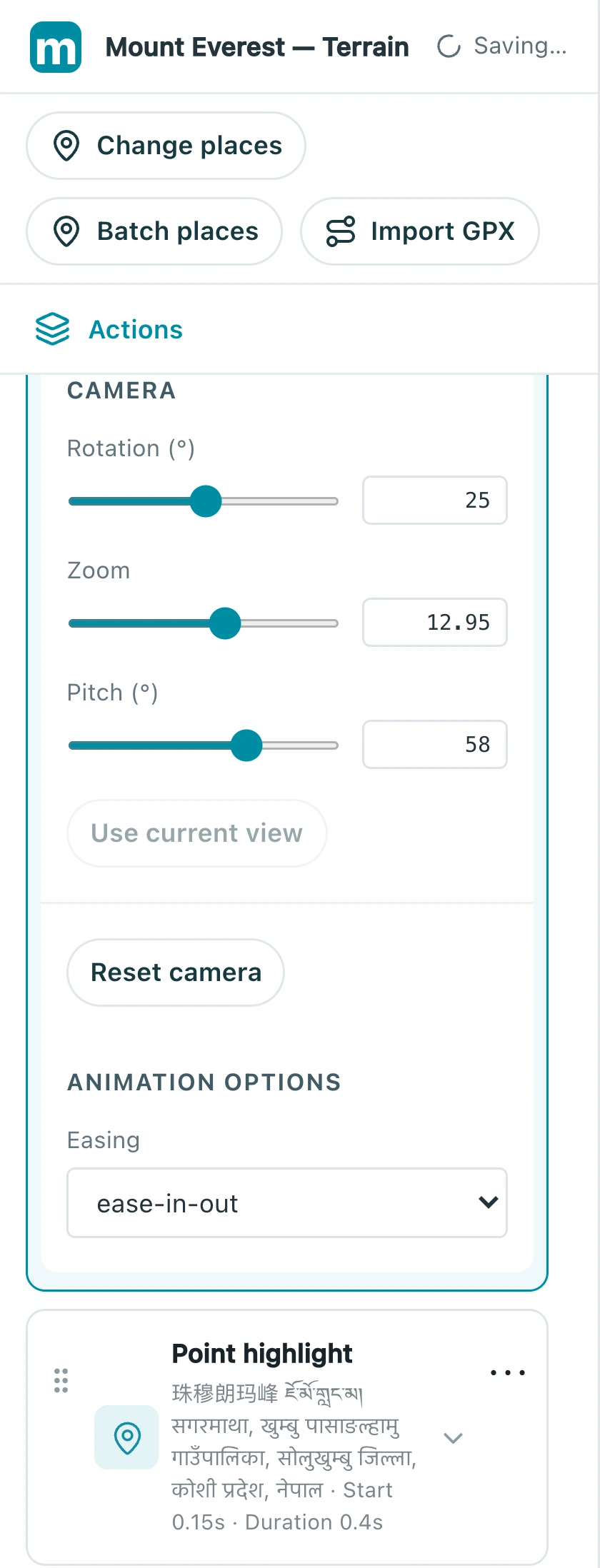
3.2 Adjust orbit speed through its timing. This example starts at 4.5 seconds and lasts 5.5 seconds, ending at 10.
Check: The subject remains visible at the beginning, middle, and end of the orbit.
4. Review loaded detail before exporting
Wait for map tiles and terrain detail to appear before judging sharpness. Review the entire move and final frame before export. Resolve blank areas, blurred patches, or loading errors instead of treating an unfinished preview as the final result.
4.1 Play the full sequence and inspect the ending: summit, marker, and terrain should stay clear throughout.
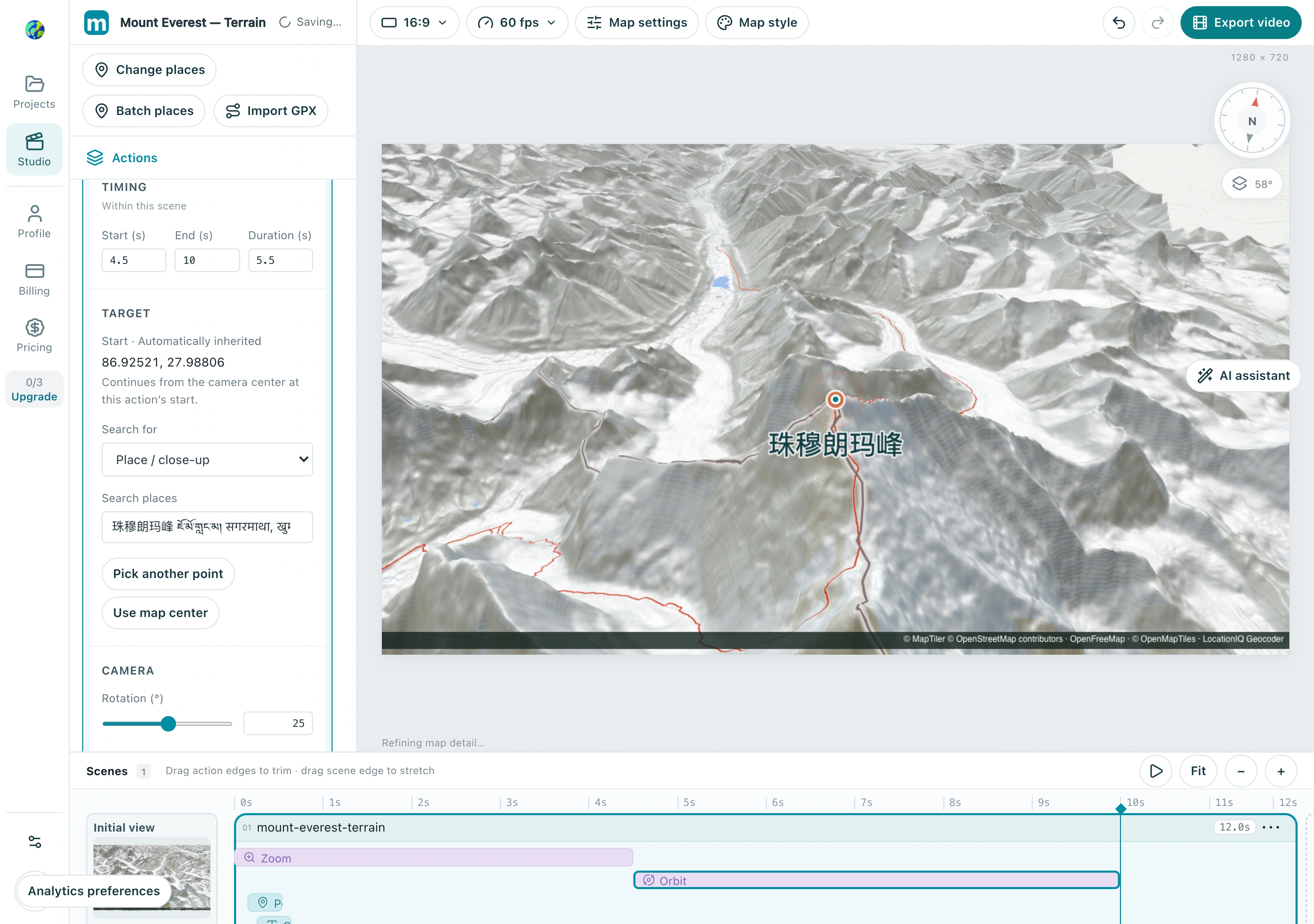
Check: The subject is clear throughout the orbit, with time to inspect the ending.
Make your own version
Replace the example with a city you know, finish a short sequence, and review it end to end. Make one clear story before adding more effects.
Practice in Studio