
Review and export your finished video
Check format, resolution, frame rate, and playback, then download and inspect the finished file.
A smooth editor preview does not replace checking the downloaded file. Confirm composition and timing before choosing export settings, then play the actual output, especially its opening, joins, and ending. The free review copy uses2D Light, rather than the reference video’s satellite style.
Watch the result
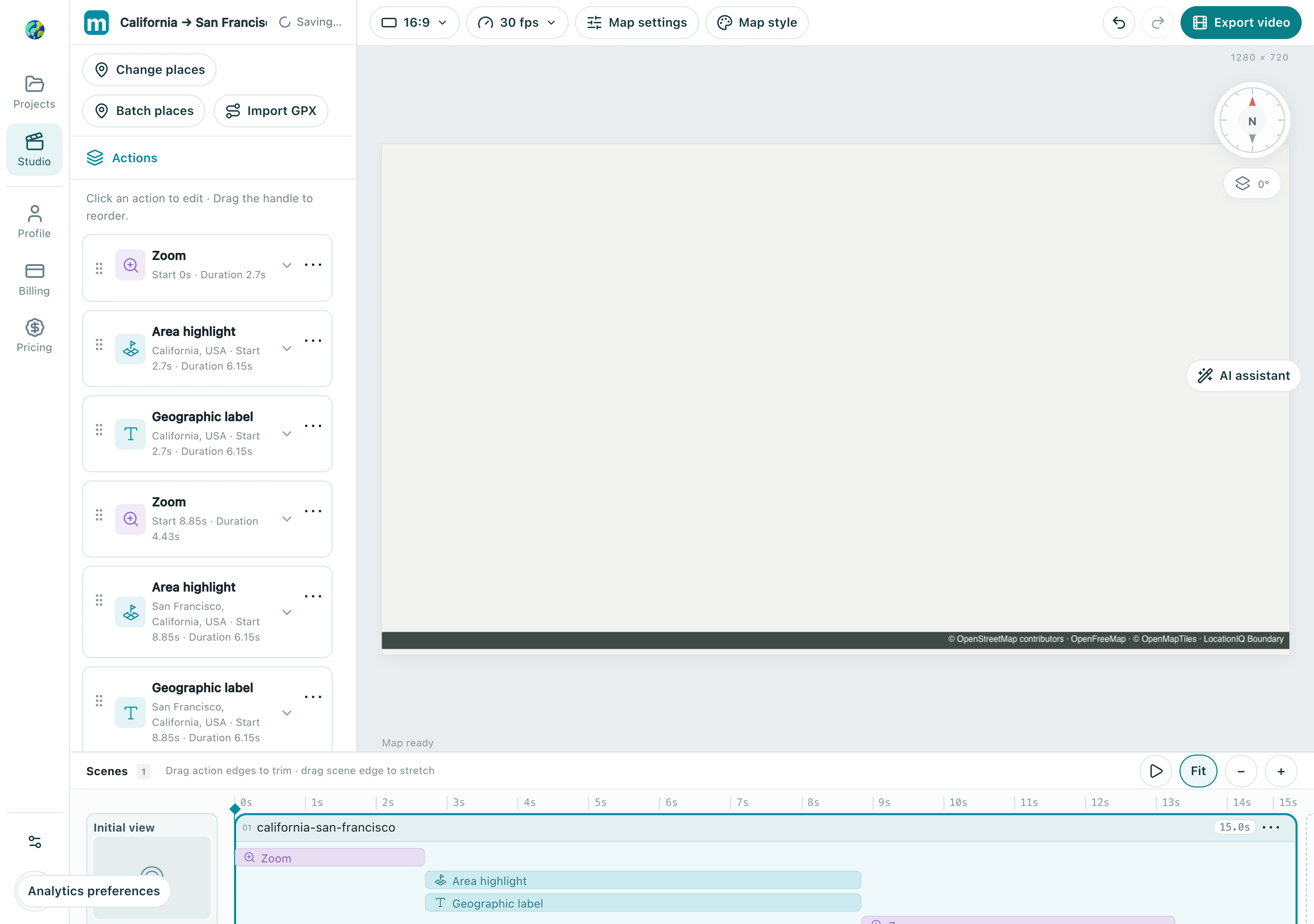
1. Finalize format and framing
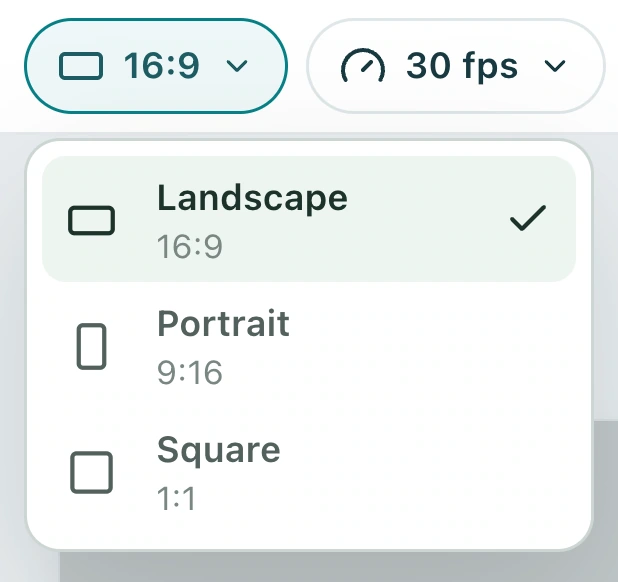
Select the intended landscape or portrait format in the toolbar. After changing it, play from the beginning and inspect labels, long routes, and tall buildings near the edges. Do not export immediately after changing the ratio.
1.1 Open the format menu and confirm the ratio. This example uses landscape 16:9; recheck framing after changes.
Check: Every shot works in the final format.
2. Choose output settings for the job
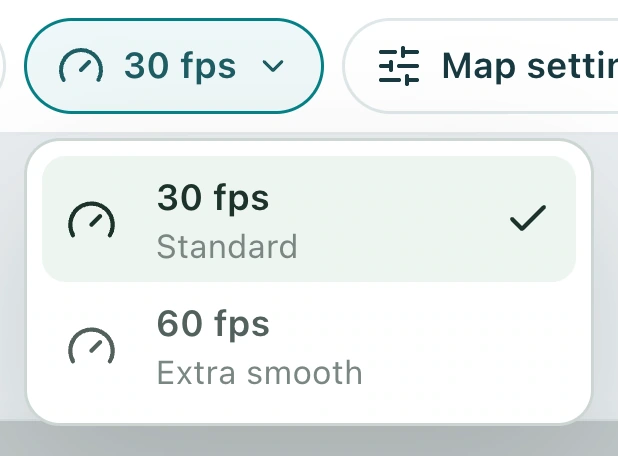
The toolbar offers 30 and 60 fps. Review at 30 fps, then choose 60 if needed. Resolution follows the format; the export dialog shows the current pixel dimensions.
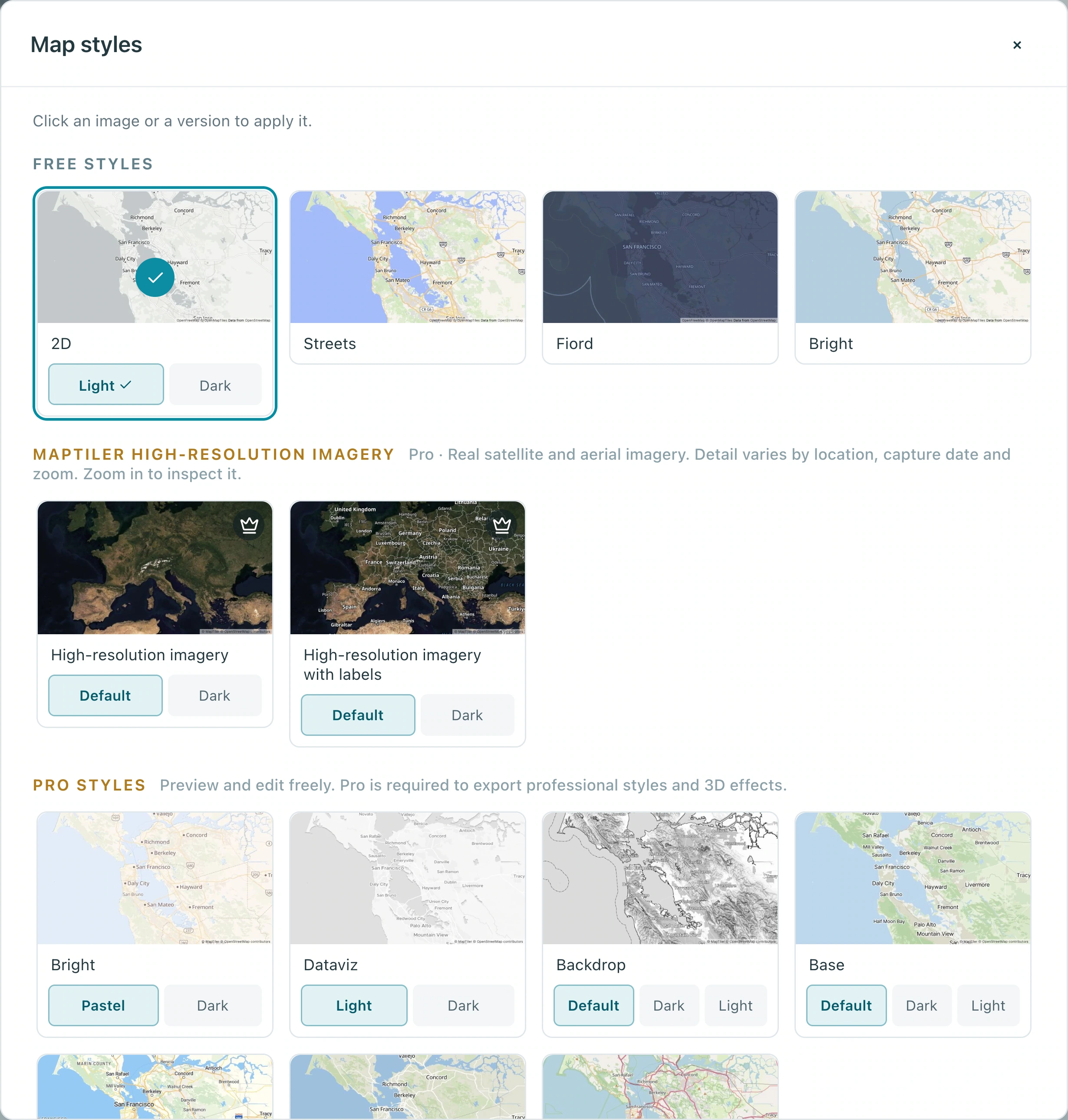
2.1 For a free-plan export, choose an available style such as 2D Light in Map style. This review copy uses 2D Light.
2.2 Choose 30 or 60 fps in the frame-rate menu. The actual review copy here uses 30 fps.
2.3 Open Export video and verify resolution, rate, and format:1280×720,30 fps,MP4 in this actual dialog.
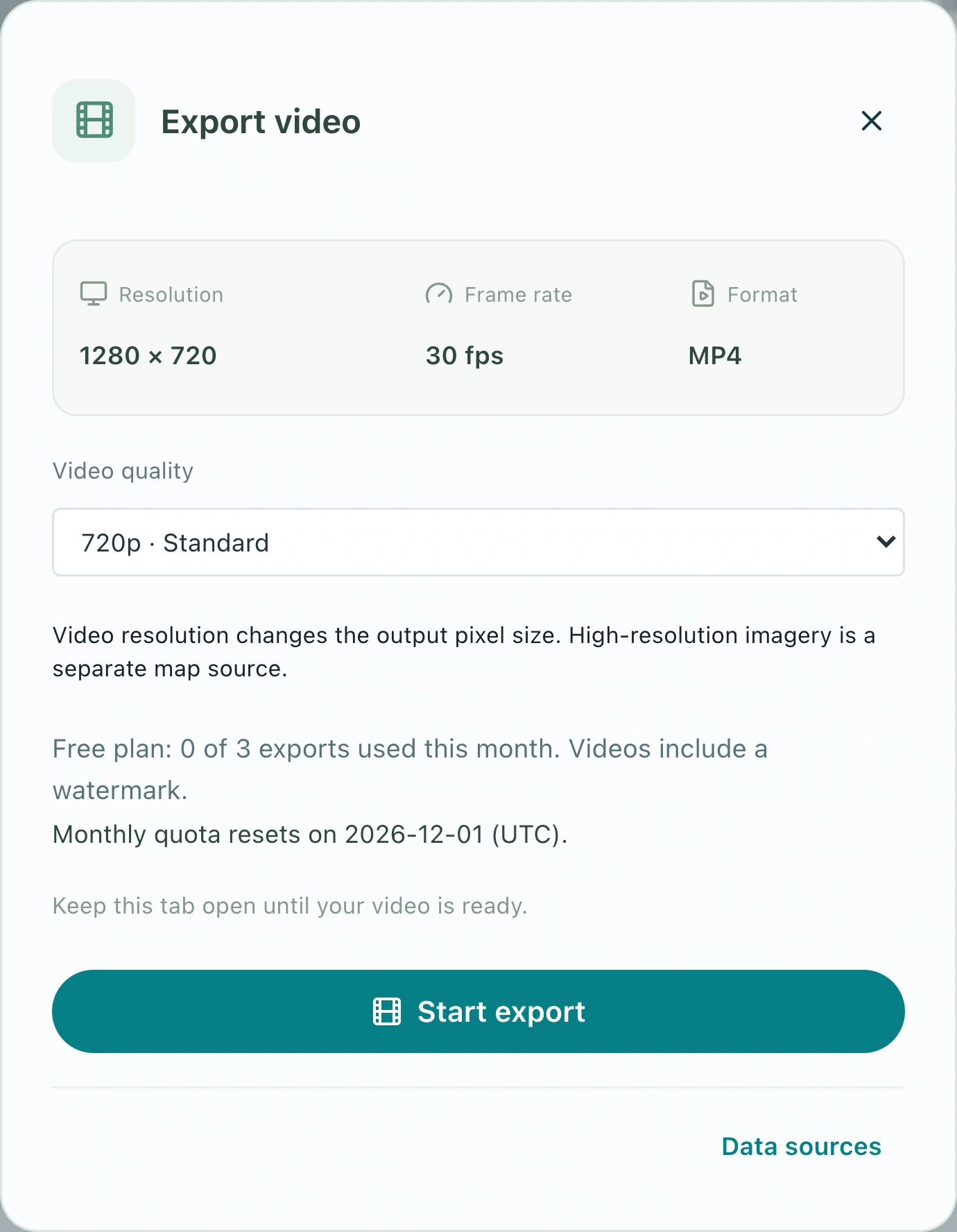
Check: The review copy confirms pacing and composition, and final settings match your use.
3. Start export and keep the tab open
Choose Export video, review the settings, and start. Frames are generated in the browser, so duration depends on video length, frame rate, resolution, device performance, and map loading. Keep the tab open and avoid competing heavy tasks.
3.1 After Start export, the progress area shows status and Cancel export. Keep the tab open; this is the actual initial generation state.
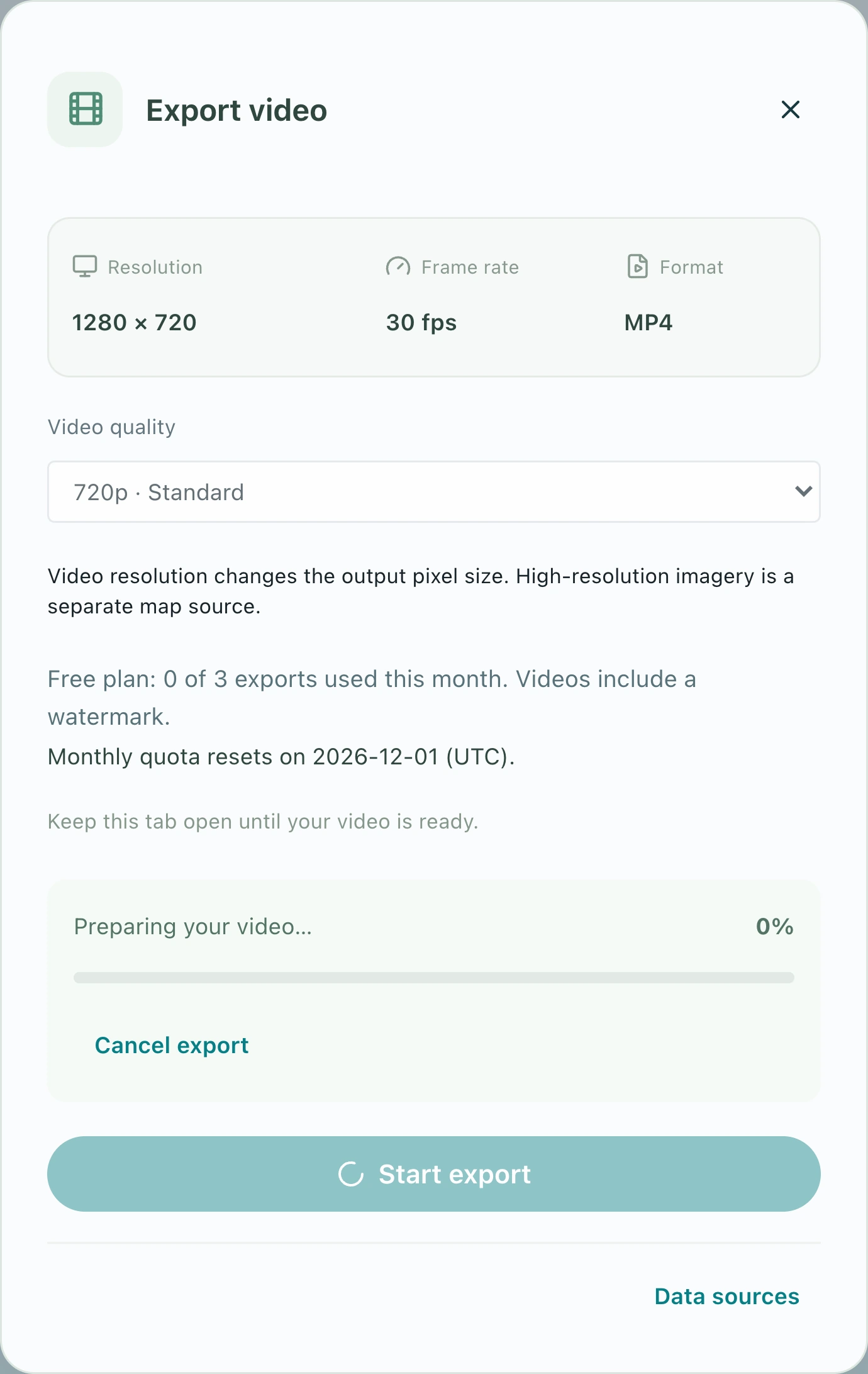
Check: Progress advances and the interface reports that the video is ready.
4. Download and play the actual file
Download the completed video and watch it end to end in a player. Check for black frames, missing map areas, abrupt endings, incorrect proportions, and obstructed labels. Distinguish the player background from blank areas inside the video; full-screen viewing can help.
4.1 When Export ready appears, choose Download video. This actual 15-second MP4 was downloaded and verified as 450 frames; review the whole file in a player.
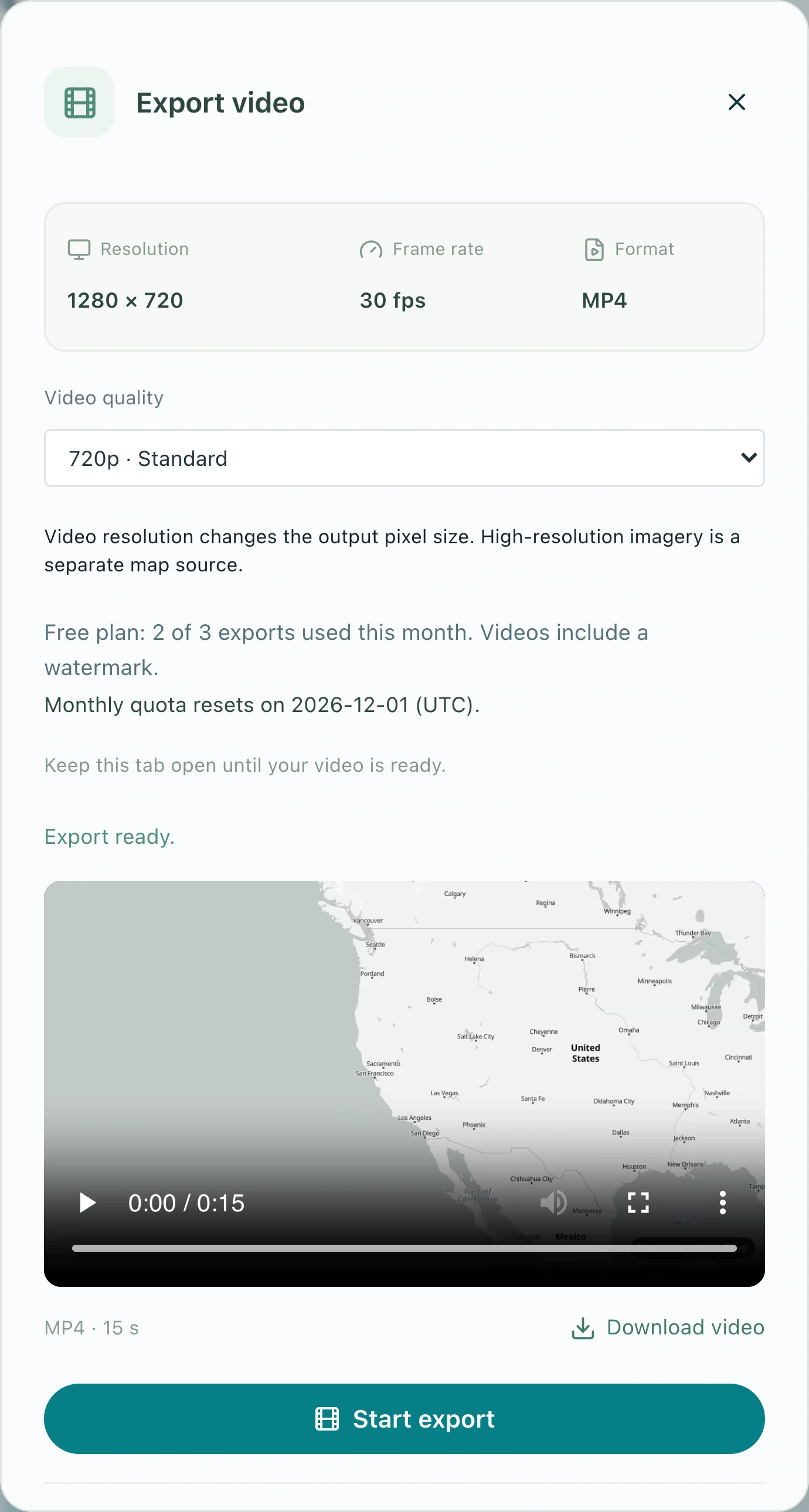
Check: The downloaded file plays completely, with a correct opening, joins, and ending.
Make your own version
Replace the example with a city you know, finish a short sequence, and review it end to end. Make one clear story before adding more effects.
Practice in Studio