
Sequence camera moves without conflicts
Compose an opening, zoom, orbit, and hold by controlling start times, durations, and overlap.
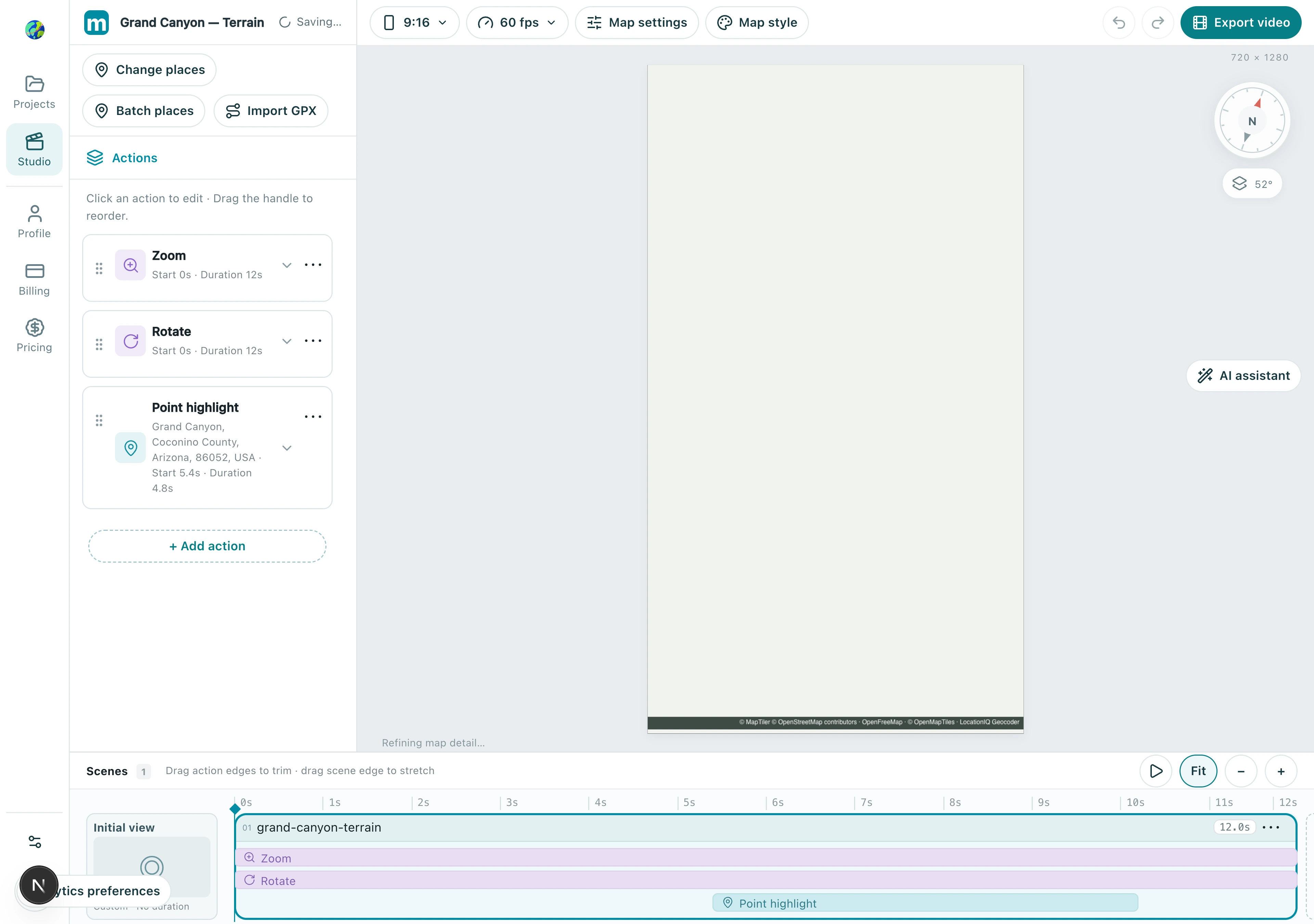
A video does not need constant motion. Establish the location, approach the subject, and give viewers time to inspect it. Use the timeline to arrange this rhythm. The Grand Canyon example shows how camera movement can reveal terrain.
Watch the result
1. Separate the initial view from timed actions
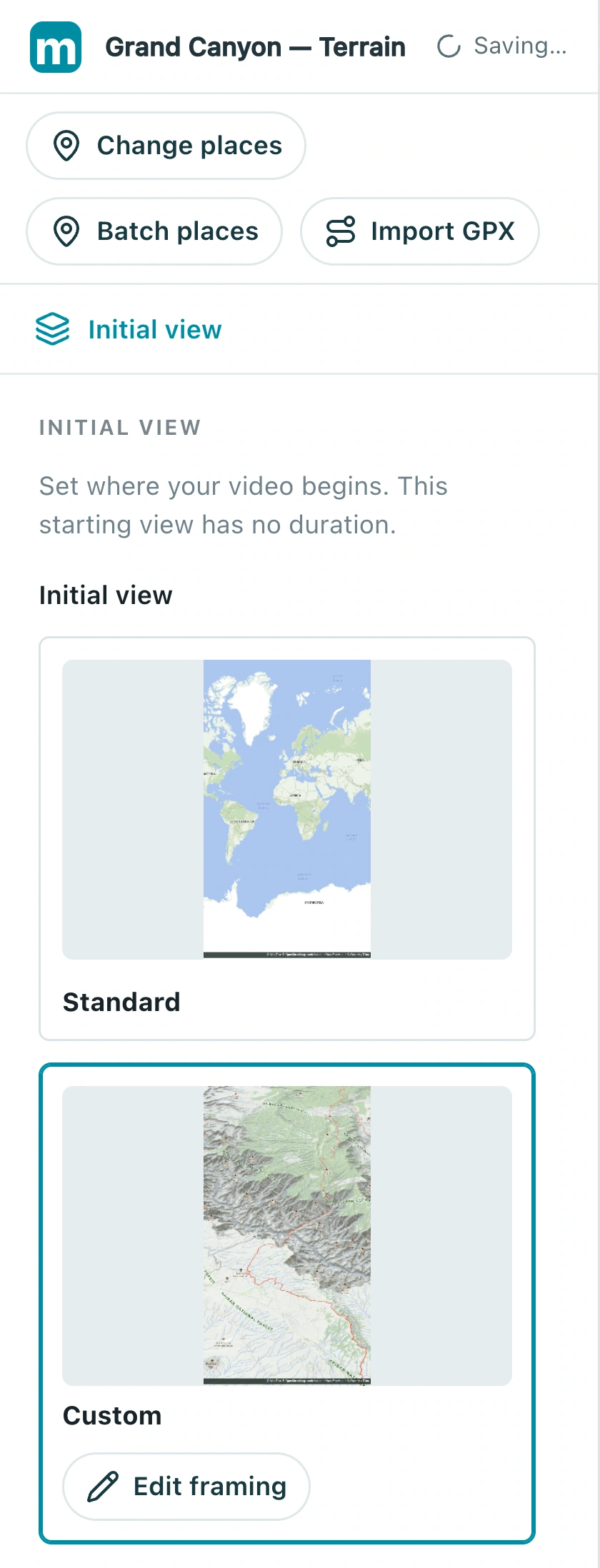
The initial view sets where the video begins and has no duration. Actions such as zoom, focus, pan, orbit, and hold occupy time. Confirm the opening composition before adding the first move.
1.1 Select Initial view at the left of the timeline. It defines the opening composition and has no duration.
Check: Both the opening composition and the first destination are intentional.
2. Sequence camera actions
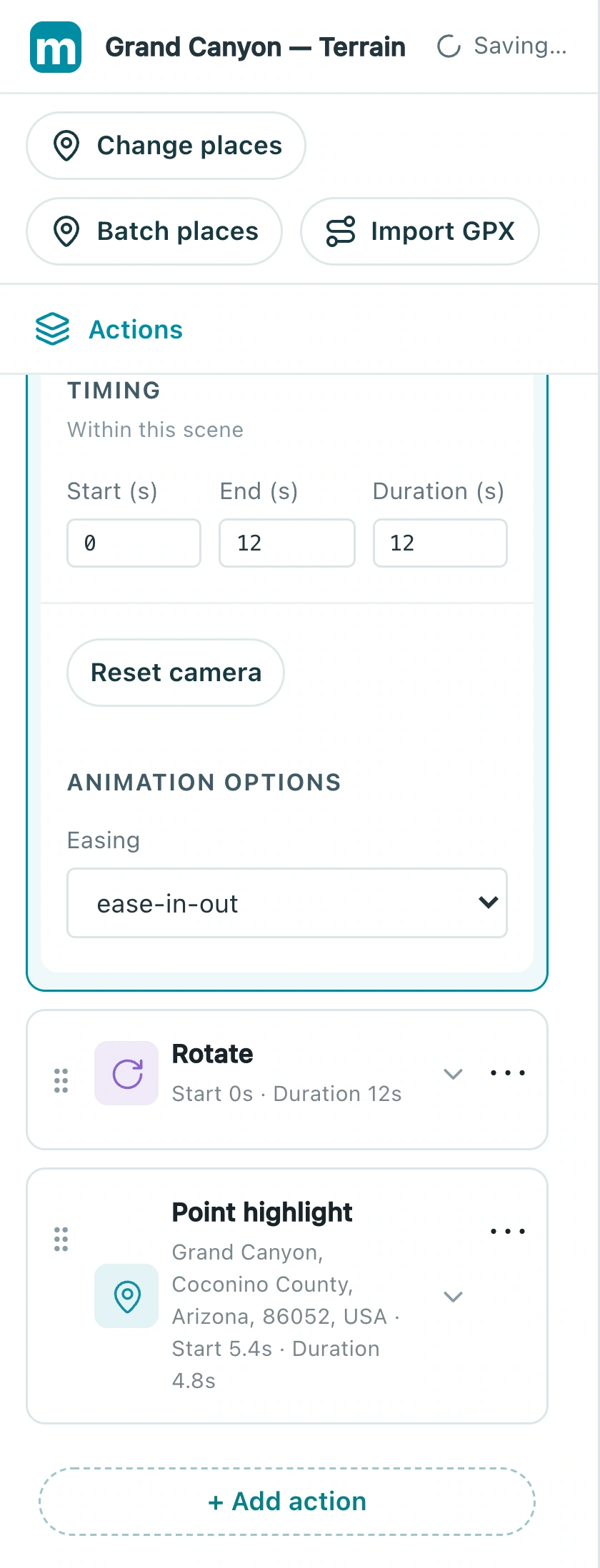
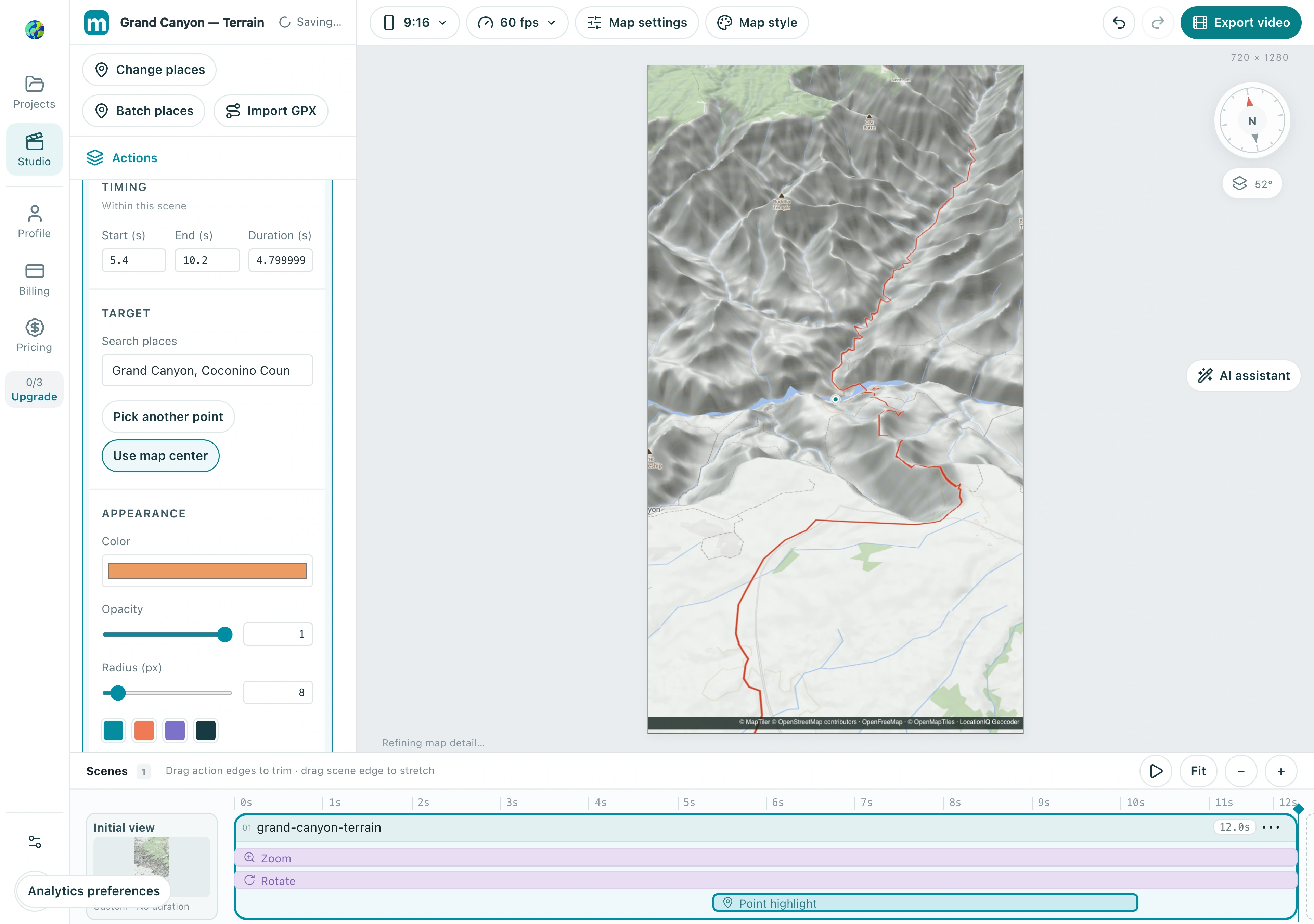
Timing fields determine when actions occur. This example zooms and rotates together on different camera parameters. To sequence moves, start the next one when the previous one ends.
2.1 Select Zoom and edit its timing. This example runs 0–12 seconds; place a subsequent move at 12 seconds or later.
Check: Start times and durations match your plan, with no camera-conflict warning.
3. Overlap visual elements intentionally
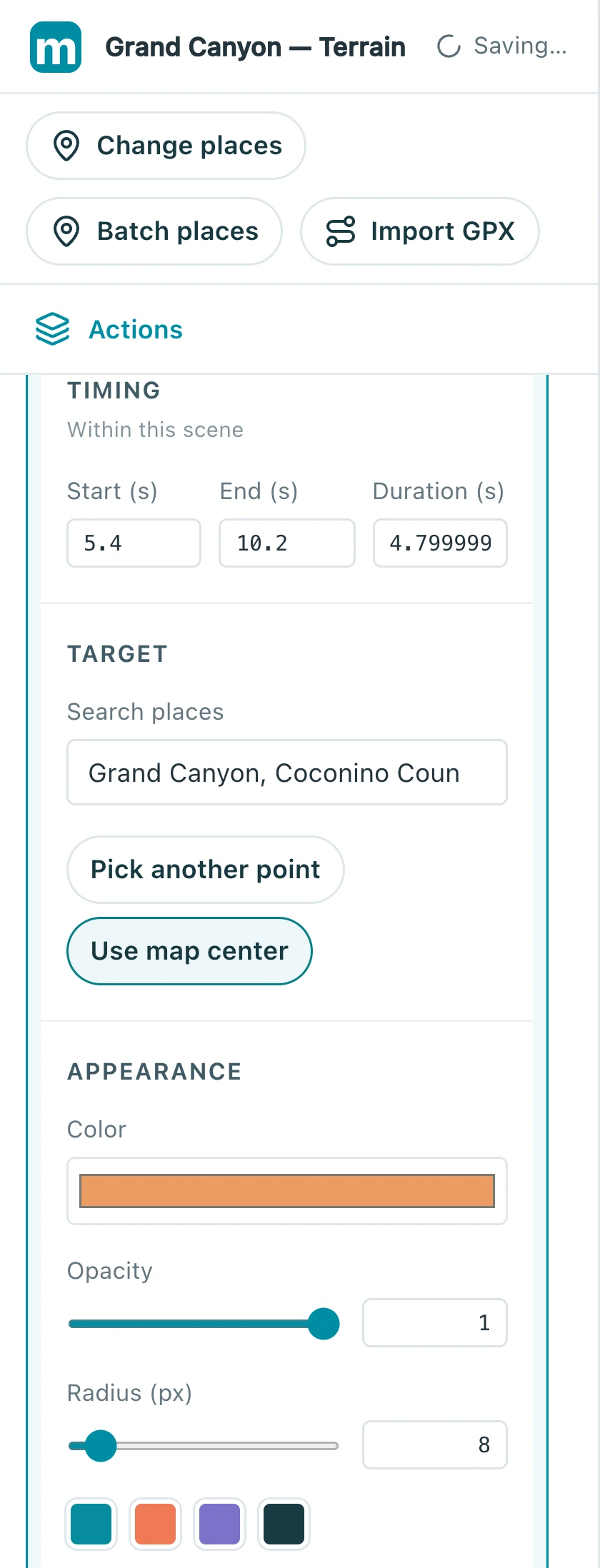
Markers and text can overlap a camera move, such as revealing a name during arrival. Zoom and rotation can combine; actions controlling the same camera parameter may conflict. Check the interface warning.
3.1 Inspect the place-highlight timing: it starts at 5.4 seconds for about 4.8 seconds, appearing during the camera move.
Check: There is no camera conflict and labels are readable when they appear.
4. Inspect the joins
Scrub just before and after every action boundary, then play the whole sequence. Look for jumps, subjects leaving the frame, and unintended pauses. Lengthen rushed moves and add a hold to abrupt endings.
4.1 Choose Fit to show the full timeline, scrub along the ruler, and play the complete sequence.
Check: Both the joins and the full sequence feel coherent, with a clear final subject.
Make your own version
Replace the example with a city you know, finish a short sequence, and review it end to end. Make one clear story before adding more effects.
Practice in Studio